Rummy Safety: Check App Permissions Before a Session
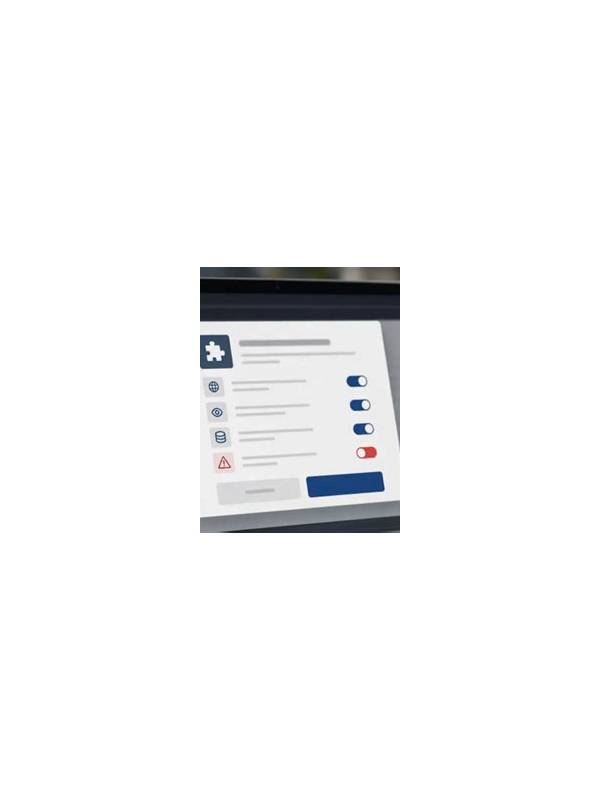
Before using a rummy app, review the permissions it requests and compare them with its stated functions. A card game may need network access for online play, but a request for unrelated access deserves attention. Permission names and menus vary by device, so use the operating system’s settings as the source of truth rather than relying on a screenshot or a message from an unknown person.
Open the app details page in your device settings and inspect permissions individually. Consider whether access to notifications, storage, contacts, microphone, location, or the camera is necessary for the feature you intend to use. Some permissions support optional features; others may be unnecessary. Deny access that is not needed, then check whether the app continues to work as expected.
Do not assume that an app is safe merely because it launches after permission is granted. Verify the publisher, download source, update behavior, and privacy information through trusted channels. Be cautious if an installation guide asks you to disable device protections or grant broad access without explaining why. Convenience should not require you to abandon basic controls.
Review permissions again after updates, especially if the app changes its features. Android and other operating systems may also display indicators when the microphone, camera, or location is active. If an indicator appears unexpectedly, close the app, inspect the permission list, and seek official support. Do not respond by installing a second “cleaner” or “security helper” from an unverified link.
Account safety and device safety work together. Use a screen lock, keep the operating system current, and avoid signing in on devices you cannot control. If you notice suspicious behavior, stop entering account or payment information until you have verified the app and device. A permission review takes only a few minutes and gives you a clearer basis for deciding what the app is allowed to do during a session. If you uninstall an app, check whether its account sessions, downloaded files, or saved payment methods require separate cleanup. Use the device settings and official account controls rather than a third-party removal tool. When in doubt, pause account activity and seek verified support. Small checks at installation time are easier than trying to reconstruct what an unfamiliar app changed later. Permission checks are most useful when repeated after major updates or when the app is installed from a different source. If the requested access changes without a clear feature reason, pause and verify before continuing.