Rummy Safety: Keep Notifications From Revealing Account Activity
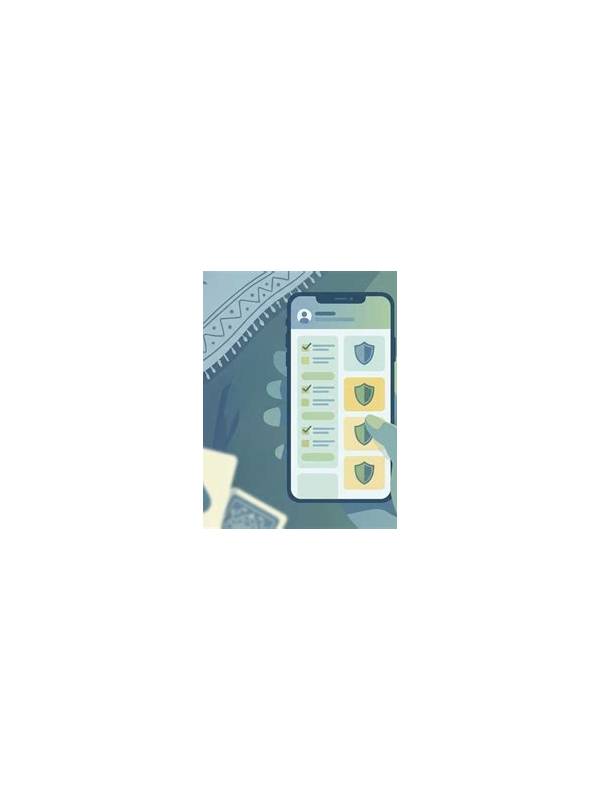
Notifications can be convenient, but previews may reveal more than you expect. A lock screen might show an account name, a login alert, a transaction message, or a one-time code. Anyone who can see the device may learn information that should remain private. Adjusting notification visibility is a practical part of protecting a gaming account.
Consider notification sounds as well as text. A distinctive alert can reveal which service is active even when the words are hidden. Use a general sound, vibration-only mode, or scheduled quiet period when privacy matters. Do not silence important security alerts permanently; instead, arrange for them to be visible after the device is unlocked. Privacy and timely account warnings can coexist when the settings are deliberate.
Start with the operating system’s lock-screen settings. Choose an option that hides message content until the device is unlocked, or disable sensitive previews entirely. The wording varies across phones, so check the setting after changing it by locking the screen and sending a harmless test notification. Do not use a real verification code for testing.
Review the app’s own notification categories as well. You may be able to keep table reminders while disabling promotional messages, payment notices, or account-detail previews. Select the smallest set that serves your purpose. Fewer notifications also reduce distractions that can lead to rushed decisions during a session.
Shared devices need extra care. Use a separate device profile where available, sign out when finished, and avoid saving passwords in a browser that other people use. Notification controls do not replace account security. They simply reduce accidental disclosure when the device is visible or temporarily unattended.
If a notification exposes sensitive information, dismiss it and review the account through the official app or website. Avoid tapping links in message previews. For a suspicious login or payment alert, use the known account entry point, check recent activity, and contact official support through a verified channel. Never forward codes or screenshots that contain private details.
Make notification review part of a broader device check after updates or when you change phones. Settings can be reset during migration, and a new lock screen may use more generous previews by default. A few minutes of configuration can keep routine activity private without preventing useful alerts from reaching you.
Also review notifications on connected watches, tablets, and desktop mirrors. A secure phone can still expose a preview through another paired device. Disable mirroring for sensitive categories or apply the same hidden-preview rule everywhere. Check the result after changing the setting so you know which device is actually displaying the alert.